共计 4647 个字符,预计需要花费 12 分钟才能阅读完成。
提醒:本文最后更新于2026-09-10 11:26,文中所关联的信息可能已发生改变,请知悉!
1.命令
mkdir /Download
wget -N --no-check-certificate https://raw.githubusercontent.com/ToyoDAdoubi/doubi/master/aria2.sh
chmod +x aria2.sh
bash aria2.sh
安装完后运行 ./aria2.sh
1、配置 自动更新 BT-Tracker服务器
2、重新设置密码并更改下载目录为 /Download
Rclone 是一款能够方便的管理 GoogleDrive 与 OneDrive 等网盘以及FTP多种文件存储的管理软件,支持挂载盘符与命令MOVE、COPY、SYNC、MKDIR等操作。 [官网介绍]1.安装命令
yum -y update
yum -y install fuse
curl https://rclone.org/install.sh | sudo bash
安装成功后会提示 rclone v1.xx has successfully installed.
首先需要在本地电脑也下载 rclone (用于获取 OneDrive 登录 TOKEN , 因为过程当中会打开网页,登录 OneDrive
由于 SSH 配置是无法看到网页的)
下载地址:https://rclone.org/downloads/ 然后解压出来,比如我解压到D盘,文件夹命名rclone,此时点击Win+R,然后输入cmd,确定。再输入以下命令:
cd /d d:\rclone
rclone authorize "onedrive"
会出现以下信息:
D:\rclone>cd /d d:\rclone

D:\rclone>rclone authorize "onedrive"
Choose OneDrive account type?
 * Say b for a OneDrive business account
 * Say p for a personal OneDrive account
b) Business
p) Personal
b/p> b                       <== (这里 个人账号选 p 工作账号选 b 因为我是 OneDrive Business)
If your browser doesn't open automatically go to the following link: http://127.
0.0.1:53682/auth        <== (这里会打开网页 登录你的  OneDrive 账号即可)
Log in and authorize rclone for access
Waiting for code...
Got code                    <== (这里是返回你的 TOKEN)
Paste the following into your remote machine --->
{"access_token":"eyJ0eXAiOiJKV1QiLCJhbGciOiJSUzI1NiIsIng1dCI6ImlCakwxUmNxemhpeTR
mcHhJeGRacW9oTTJZayIsImtpZCI6ImlCakwxUmNxemhpeTRmcHhJeGRacW9oTTJZayJ9.eyJhdWQiOi
JodHRwczovL2FwaS5vZmZpY2UuY29tL2Rpc2NvdmVyeS8iLCJpc3MiOiJodHRwczovL3N0cy53aW5kb3
dzLm5ldC8zOWE2Y2E2MS05OGRjLTRkY2MtYjU5Mi1kM2JhYzYxNDkzOTQvIiwiaWF0IjoxNTI1Mjc2OD
...
98JnWA_VvhIUeW98RvBSAA","expiry":"2018-05-03T01:04:55.9347103+08:00"}
<---End paste
我们所需要的就是下面绿色区域中间的内容 {“access_token”:” …. “expiry”:”2018-05-03T01:04:55.9347103+08:00″}
小技巧: 因为我们是从Console控制台中复制出来的文本,所以里面会有换行符。等下是无法直接在 SSH 粘贴使用的,所以这里用到了 Notepad++ 来转换一下
1、粘贴文本到新建的记事本
2、用 Notepad++ 打开 菜单中选择 搜索 – 替换
3、设置 查找目标为 (\r\n) 勾选下面的 (扩展(\n,\r,\t…)选项)后 全部替换
然后再切换到 VPS 中配置 rclone 输入以下命令:
rclone config会出现以下信息:
[root@MeiamOS ~]# rclone config
No remotes found - make a new one
n) New remote
s) Set configuration password
q) Quit config
n/s/q> n
name> OneDrive           <== (这里输入挂在项目的名字)
Type of storage to configure.
Choose a number from below, or type in your own value
 1 / Alias for a existing remote
   \ "alias"
 2 / Amazon Drive
   \ "amazon cloud drive"
 3 / Amazon S3 Compliant Storage Providers (AWS, Ceph, Dreamhost, IBM COS, Minio)
   \ "s3"
 4 / Backblaze B2
   \ "b2"
 5 / Box
   \ "box"
 6 / Cache a remote
   \ "cache"
 7 / Dropbox
   \ "dropbox"
 8 / Encrypt/Decrypt a remote
   \ "crypt"
 9 / FTP Connection
   \ "ftp"
10 / Google Cloud Storage (this is not Google Drive)
   \ "google cloud storage"
11 / Google Drive
   \ "drive"
12 / Hubic
   \ "hubic"
13 / Local Disk
   \ "local"
14 / Mega
   \ "mega"
15 / Microsoft Azure Blob Storage
   \ "azureblob"
16 / Microsoft OneDrive
   \ "onedrive"
17 / Openstack Swift (Rackspace Cloud Files, Memset Memstore, OVH)
   \ "swift"
18 / Pcloud
   \ "pcloud"
19 / QingCloud Object Storage
   \ "qingstor"
20 / SSH/SFTP Connection
   \ "sftp"
21 / Webdav
   \ "webdav"
22 / Yandex Disk
   \ "yandex"
23 / http Connection
   \ "http"
Storage> 16           <== (这里选择 所需要挂在类型的 ID 上面是可以挂在网盘的列表)
Microsoft App Client Id - leave blank normally.
client_id>                        <== (回车留空)
Microsoft App Client Secret - leave blank normally.
client_secret>                  <== (回车留空)
Remote config
Choose OneDrive account type?
 * Say b for a OneDrive business account
 * Say p for a personal OneDrive account
b) Business
p) Personal
b/p> b                      <== (我的账号是 OneDrive Business 账号所以选择 b)
Use auto config?
 * Say Y if not sure
 * Say N if you are working on a remote or headless machine
y) Yes
n) No
y/n> n                    <== (这里选择 N )
For this to work, you will need rclone available on a machine that has a web browser available.
Execute the following on your machine:
        rclone authorize "onedrive"
Then paste the result below:
result> {"access_token":"","expiry":""}   <== (这里贴入刚才获取TOKEN)
--------------------
[OneDrive]
type = onedrive
client_id =
client_secret =
token = {"access_token":"","expiry":"2018-05-02T22:56:29.794396289-04:00"}
--------------------
y) Yes this is OK
e) Edit this remote
d) Delete this remote
y/e/d> y
Current remotes:

Name                 Type
====                 ====
OneDrive             onedrive

e) Edit existing remote
n) New remote
d) Delete remote
r) Rename remote
c) Copy remote
s) Set configuration password
q) Quit config
e/n/d/r/c/s/q> q
[root@MeiamOS ~]#
1、下载RCLOAD自启动挂载脚本:
wget -N --no-check-certificate https://raw.githubusercontent.com/x91270/Centos/master/rcloned
vim rcloned
2、修改RCLOAD自启动脚本关联目录
NAME=""  #rclone name名,及配置时输入的Name
REMOTE=''  #远程文件夹,OneDrive 网盘里的挂载的一个文件夹
LOCAL=''  #挂载地址,VPS本地挂载目录
3、设置RCLOAD自动启动
mv rcloned /etc/init.d/rcloned
chmod +x /etc/init.d/rcloned
chkconfig rcloned on
bash /etc/init.d/rcloned start
4、给ARIA2添加下载完成移动到网盘脚本
cd /root/.aria2/
wget -N --no-check-certificate https://raw.githubusercontent.com/x91270/Centos/master/move.sh
chmod +x move.sh
echo "on-download-complete=/root/.aria2/move.sh" >> aria2.conf
注意:如果你的目录和教程中不一样请在 move.sh 中设定
rclone 启动停止命令
bash /etc/init.d/rcloned start
bash /etc/init.d/rcloned stop
查看挂载磁盘
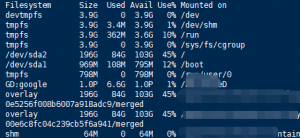
df -h